
Assigning a Protocol to a Reserved PTC Tempo Instrument
This procedure explains how to assign a protocol to one or more reserved PTC Tempo instruments in BR.io.
Note: You can assign the same protocol to multiple reserved instruments.
Important: If you've already assigned a protocol to a thermal cycler in BR.io, any new protocol that you create or select locally using the PTC Tempo Protocol Browser will replace the protocol assigned to the thermal cycler in BR.io.
Important: You cannot assign a protocol to an instrument when a run is in progress.
To assign a protocol to a reserved instrument
| 1. | If you haven't already done so, reserve an instrument. For more information about reserving an instrument, see Reserving PTC Tempo Instruments. |
| 2. | From the Instrument Reservation and Control screen, navigate to the Manage Reservations tab. |
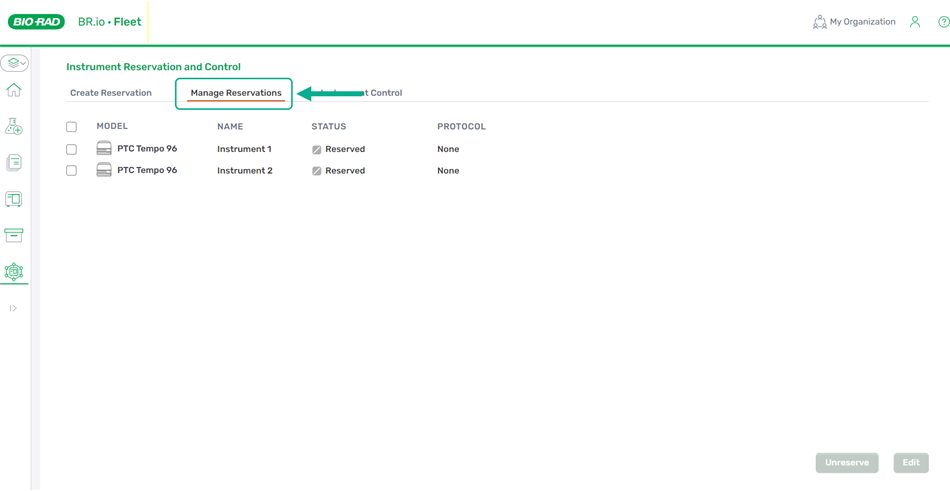
| 3. | Select the checkbox to select the instruments to which you are assigning the protocol(s). |
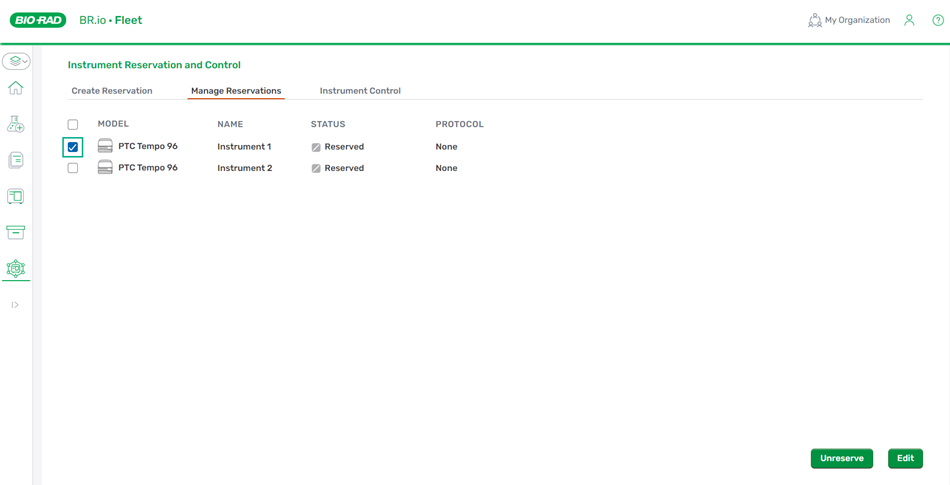
| 4. | Click the Edit button in the lower right. |
| 5. | Select the protocol from the Assign Protocol to Reserved Instruments (Optional) dropdown. |
Note: If a user is assigned to one or more organization projects, the dropdown will display protocols from the selected project. If the user selects My BRio, the dropdown will show only protocols displayed the user's personal My Brio files. For more information about managing organization projects, see Managing Projects in the Data Sharing help.
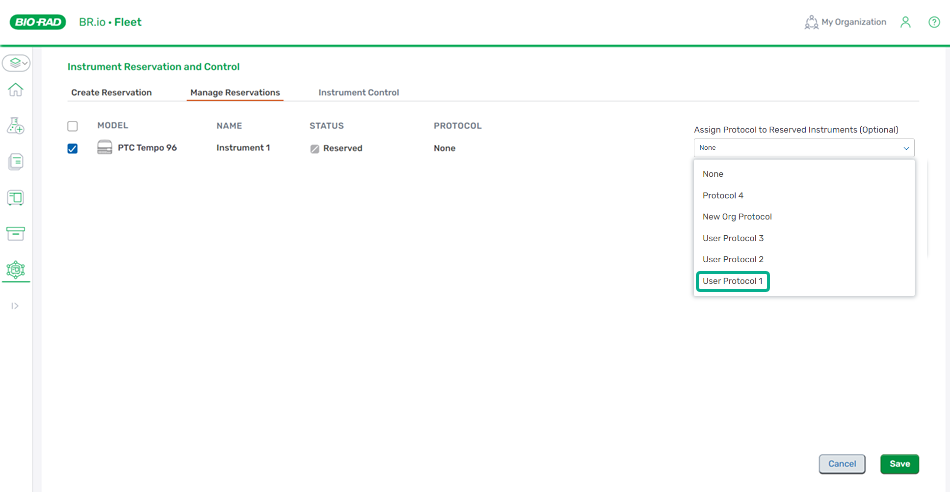
| 6. | Click Save. The Protocol column displays "Assigning (protocol name)." Then the protocol appears in the Protocol column of the Manage Reservations and Instrument Control pages. |
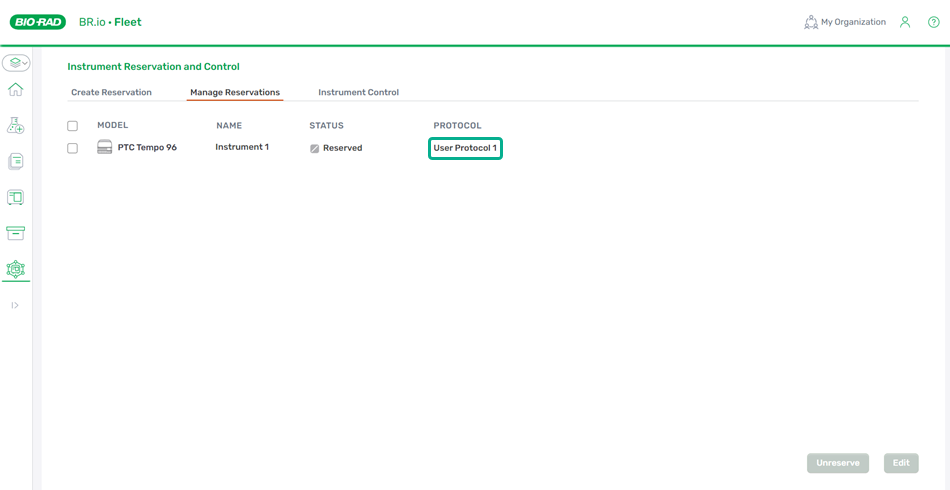
After a protocol is assigned in BR.io, the PTC Tempo instrument displays the Instrument Reserved screen with the assigned protocol. Users can modify a protocol run's volume, the instrument lid temperature, the protocol run name, and the plate ID. For more information on updating those parameters, see the PTC Tempo instrument guide.
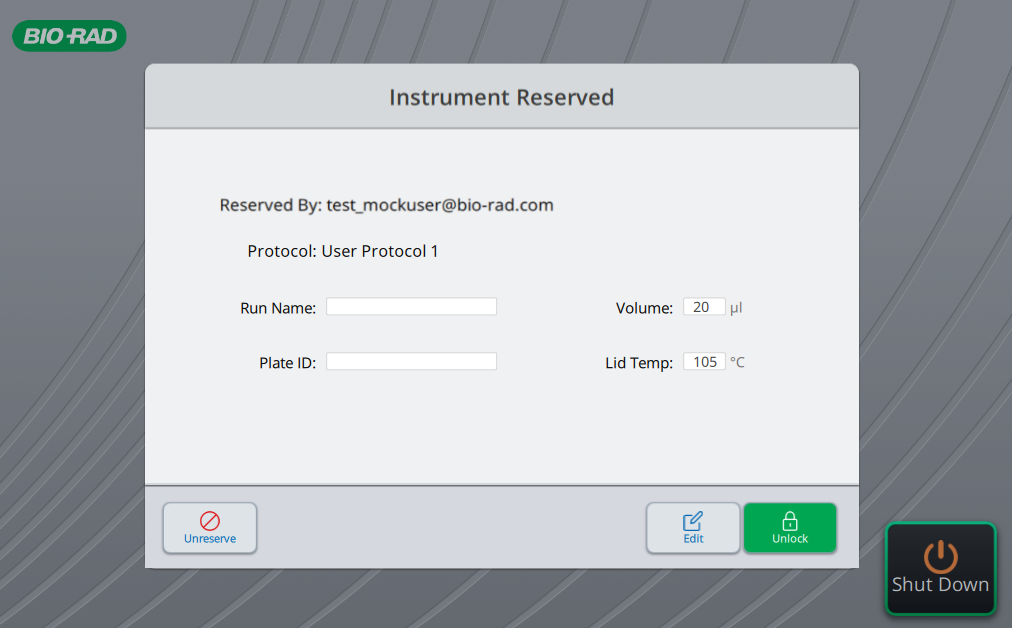
Additionally, you can open and close the instrument lid and run protocols from the Instrument Control tab. For more information on running protocols on the instrument from the Instrument Control tab, see Controlling the PTC Tempo Instrument
When a protocol run completes, the PTC Tempo instrument removes the assignment from BR.io. To re-run the protocol in BR.io, you must re-assign it to the instrument.
Note: Rerunning an assigned protocol or running another protocol from the PTC Tempo instrument will remove the protocol assigned in BR.io.
To remove a protocol assignment from a reserved instrument
| 1. | From the Instrument Reservation and Control screen, navigate to the Manage Reservations tab. |
| 2. | Select the checkbox next to the instrument(s) from which you want to remove the protocol assignment. |
| 3. | Click the Edit button in the lower right. |
| 4. | Select None from the Assign Protocol to Reserved Instruments (Optional) dropdown. |
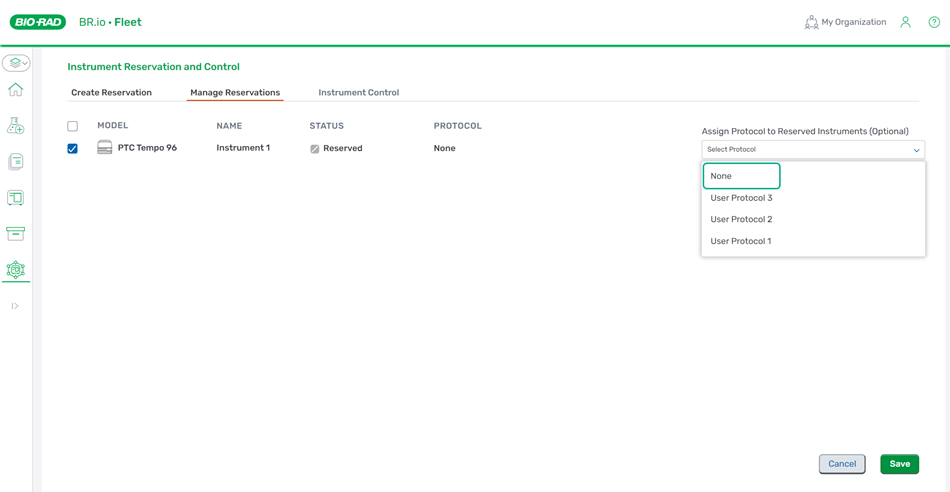
| 5. | Click Save. |
Important: Canceling an instrument reservation also removes a protocol assignment. You must reserve the instrument again to reassign the protocol.